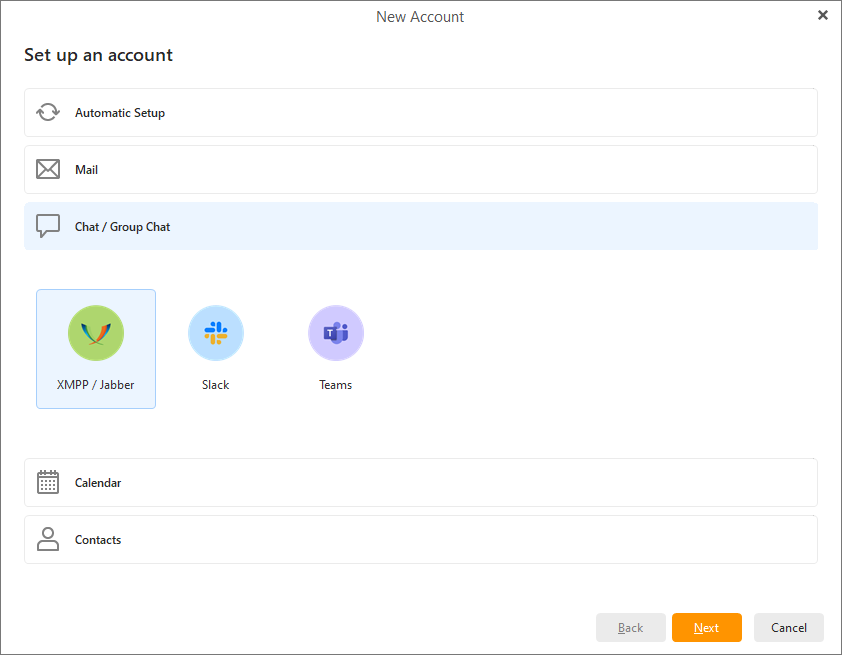
In order to use the Chat function you need an existing chat account, currently XMPP/Jabber, Slack, Microsoft Teams and Rocket.Chat accounts are supported.
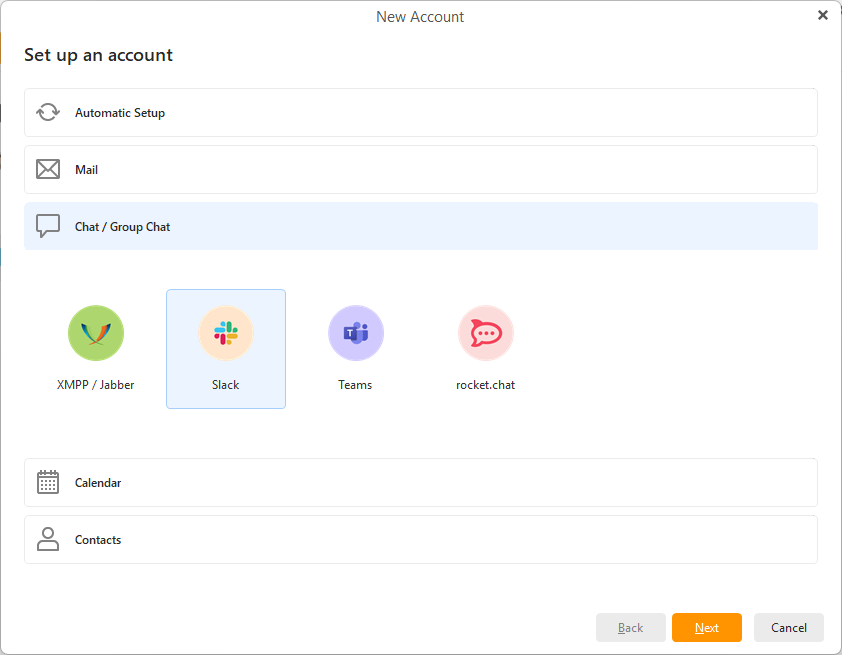
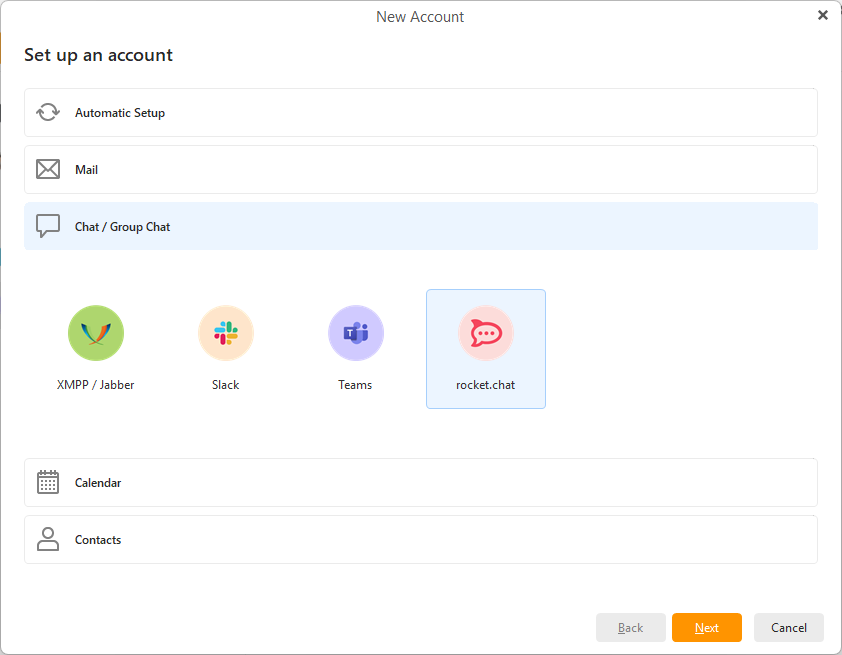
Go to menu > Accounts, click +Add Account and then select the Chat/Group Chat section.
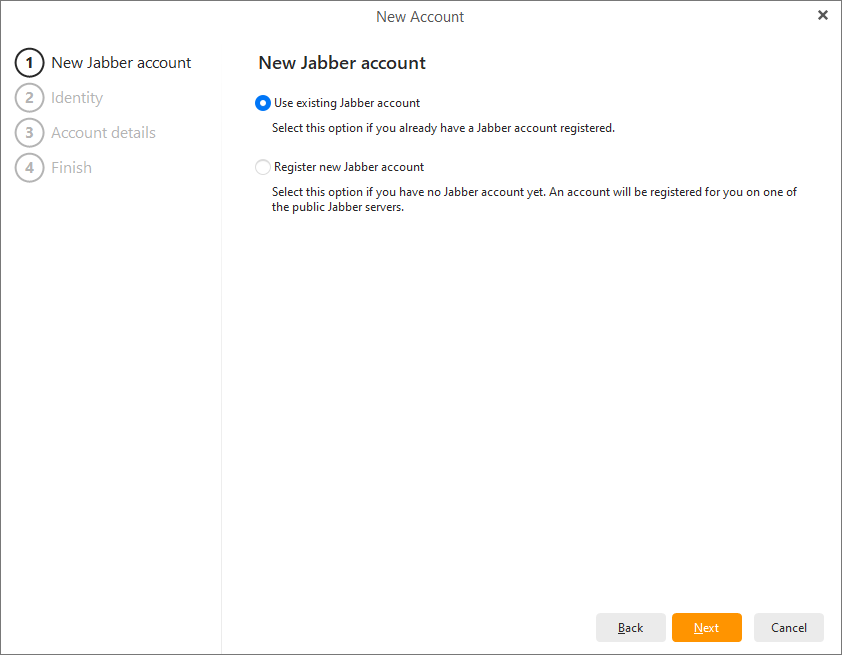
You can add an XMPP/Jabber account to eM Client in five easy steps.
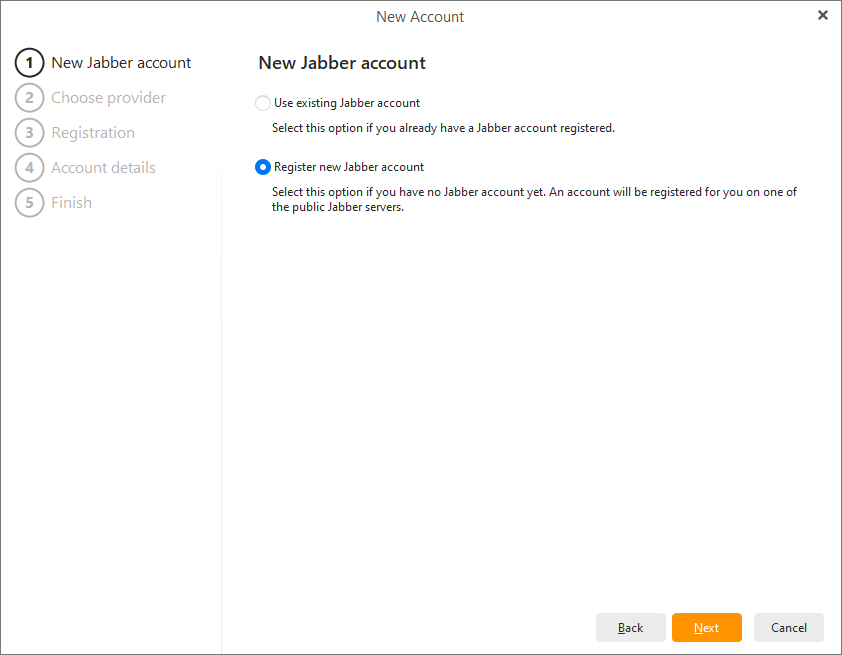
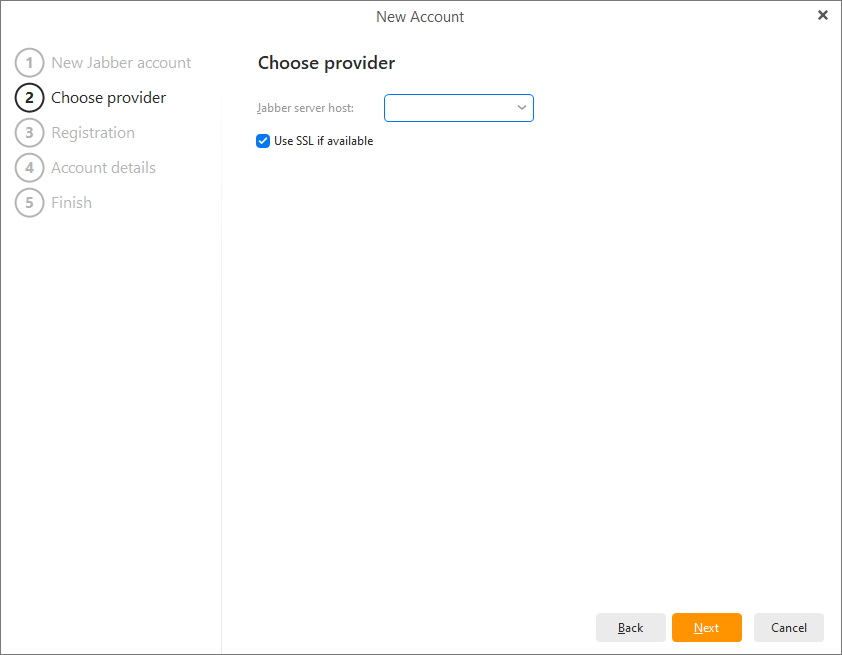
Since the XMPP protocol is hosted by decentralized servers much like IRC, you will be asked to select a host server to connect to.
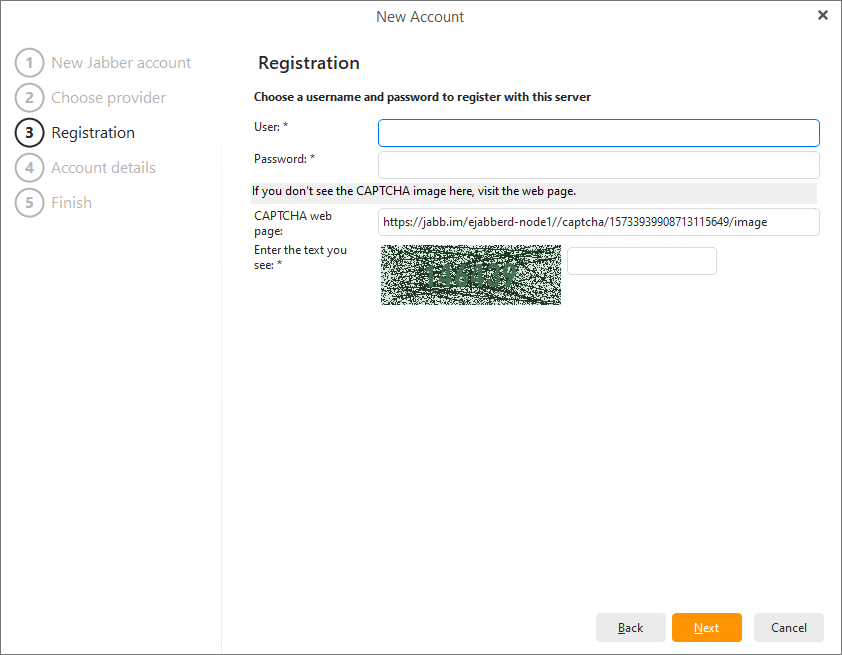
Once the XMPP/Jabber server registration succeeds, you will be asked to provide a username (has to be unique) and a password. Once the username and password are accepted, click next to finish the registration (skip to step 4).
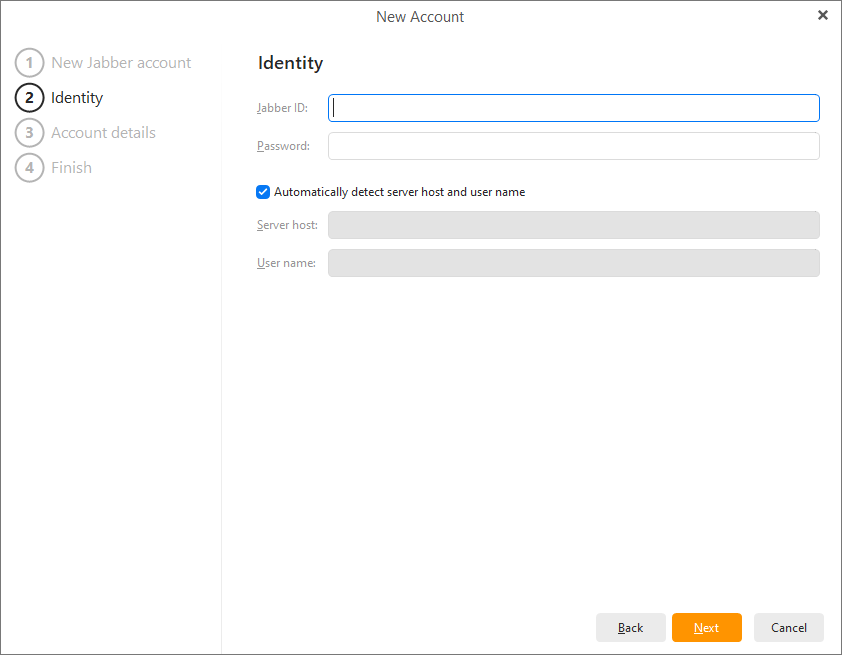
Enter your XMPP ID and password. If you enter your XMPP ID as an email address, the system will attempt to generate your likely server host and username. These can be changed manually now by unchecking the “Automatically detect server host and username box” or later in your Account settings.
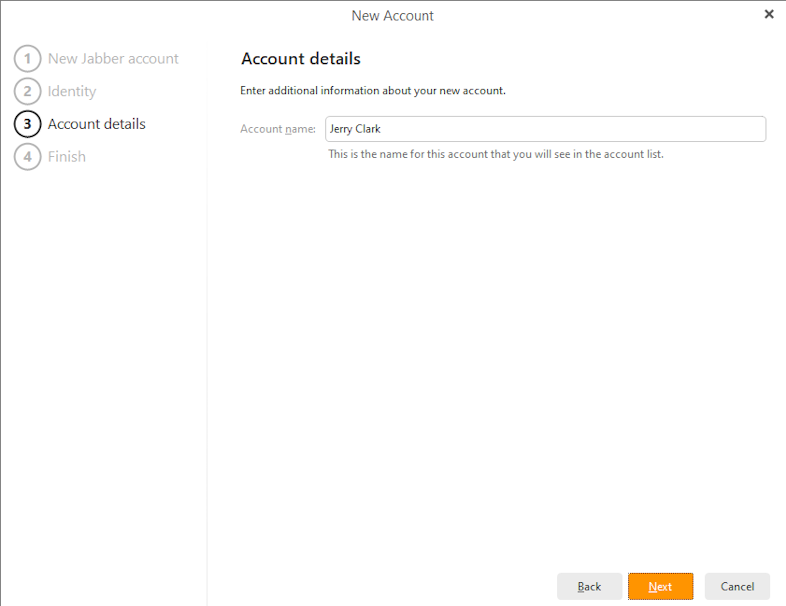
The account name is the name that you would like to be displayed in the "From" field of your outgoing messages
To add a Slack account, select the Slack icon and click Next (or double-click the icon).
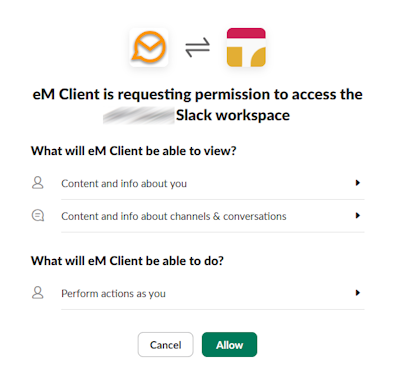
A secure OAuth login will pop up in your default browser. Log into your Slack workspace and then return to eM Client when prompted.
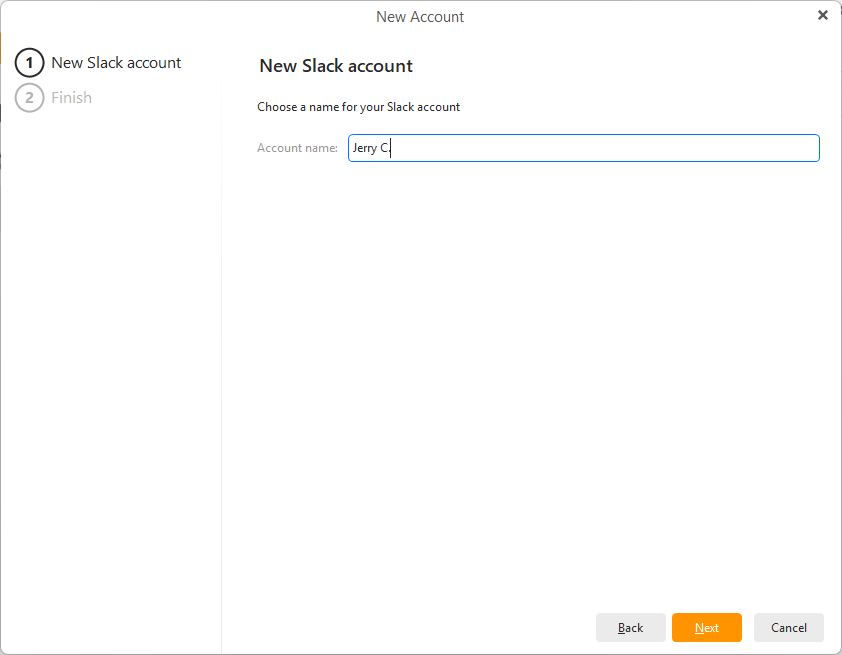
Name tour account - this name is used in the account list and in the Chat section.
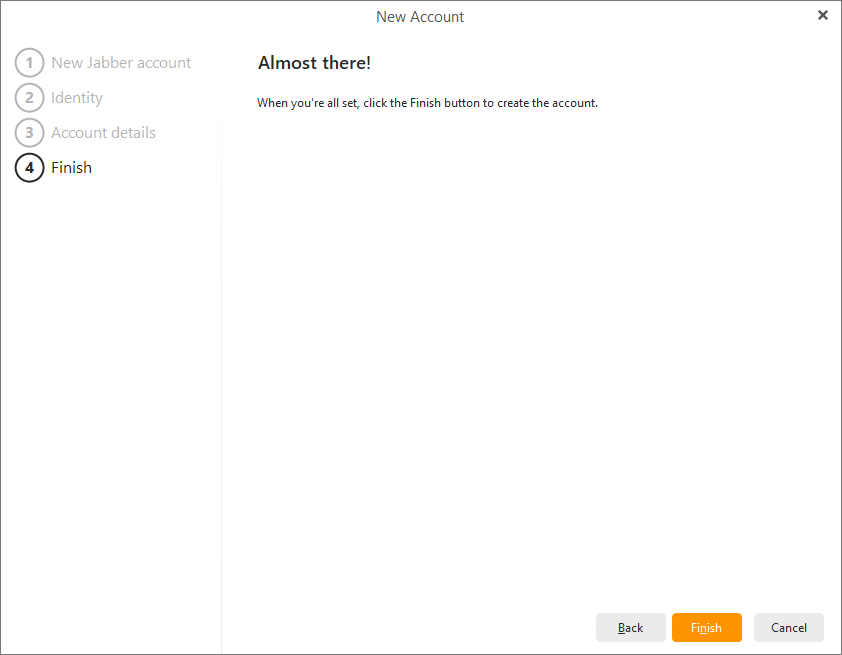
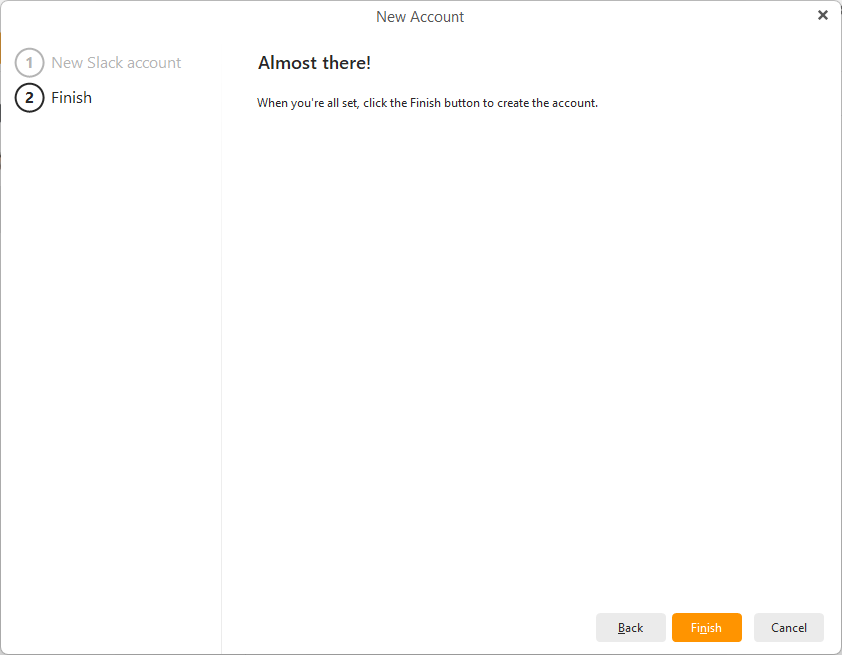
And Finish the setup.
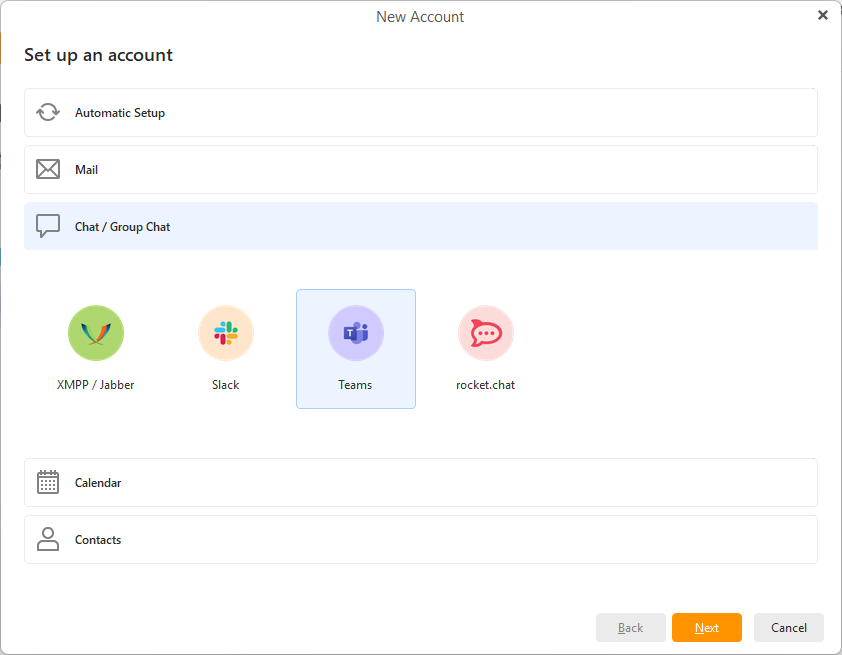
Select the Teams option and proceed via Next or double-click on the icon.
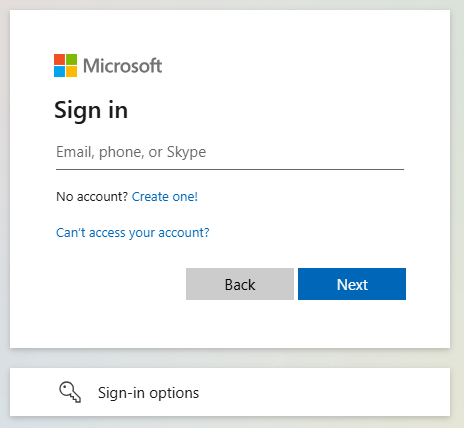
A secure OAuth login will pop up in your default browser. Log into the account and then return to eM Client when prompted.
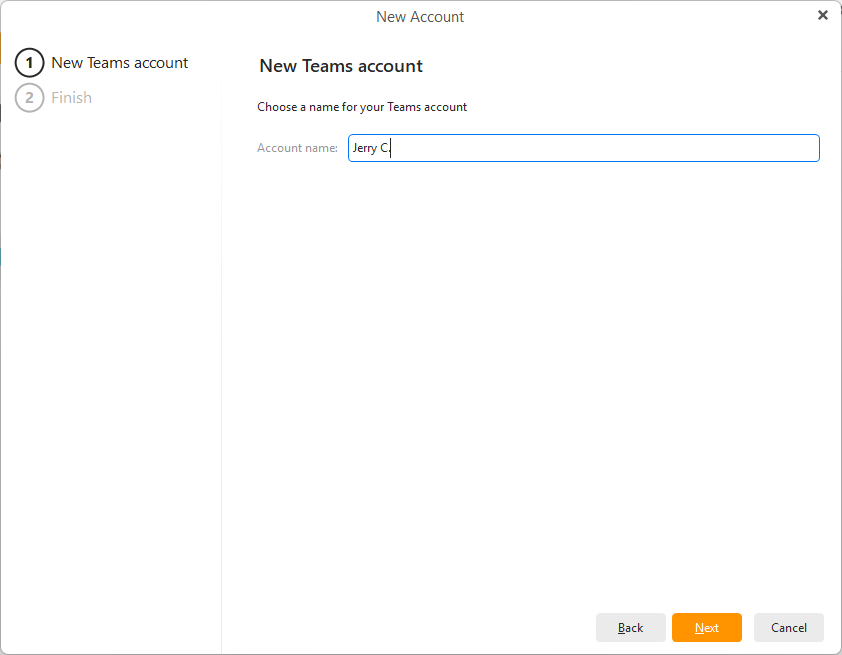
Name your account - this is the name that will be visible in the account list and in the left pane in the Chat section.
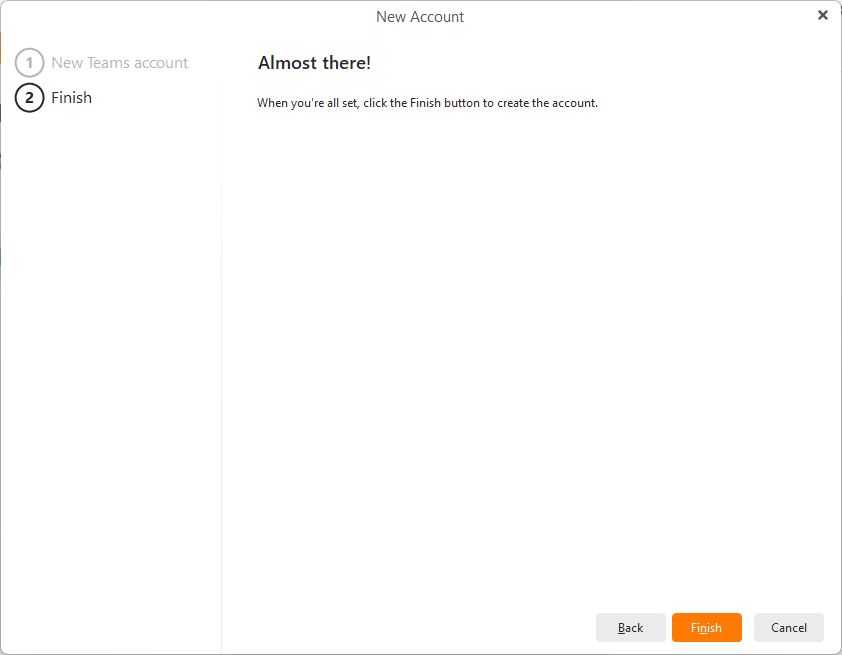
Finish the setup.
Select the Rocket.Chat icon and click Next (or double-click the icon).
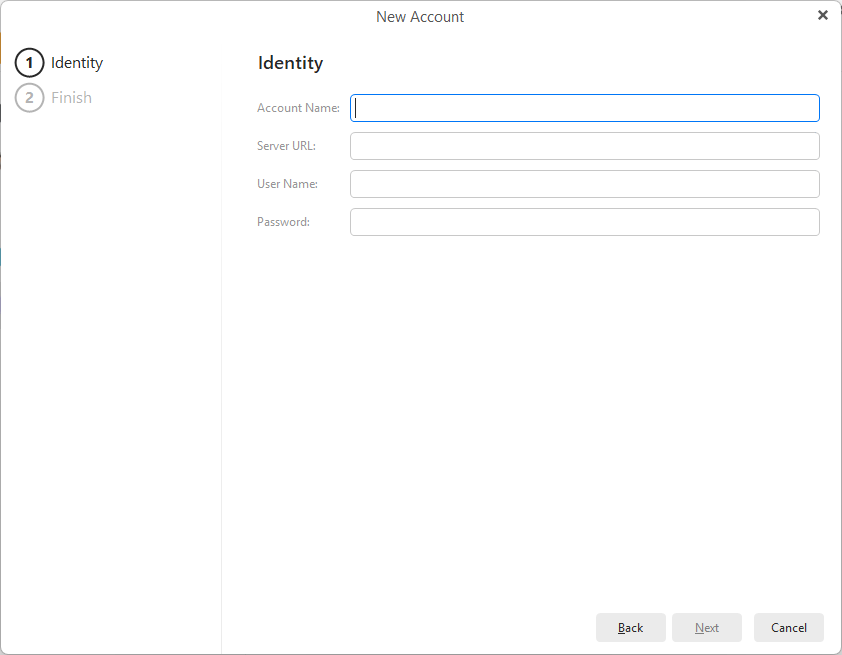
Fill in your details, these need to be provided by your admin.
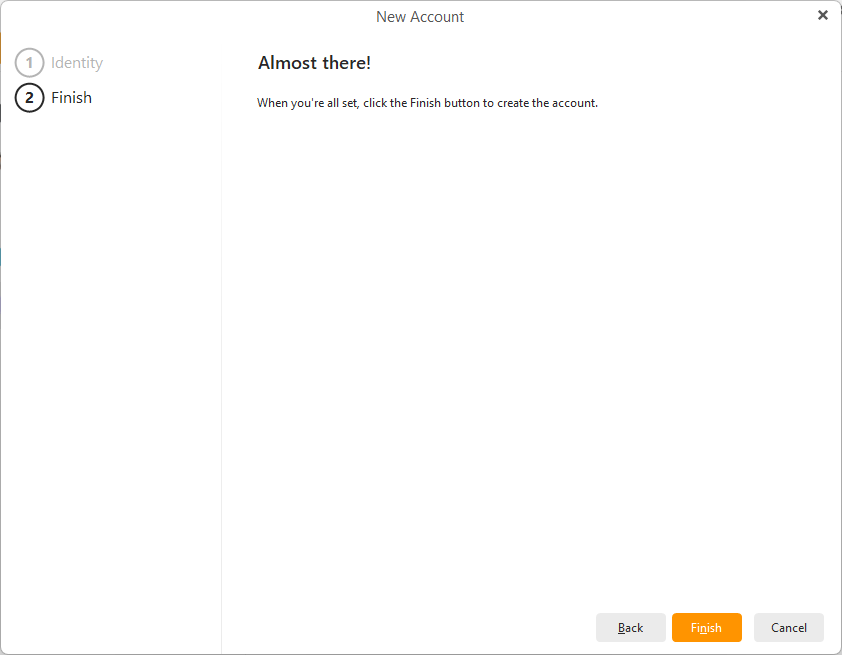
And then Finish - these are all the steps you need to add your Rocket.Chat account.
Once you add your chat accounts they will be available in the Chat section in the left menu.
Go to Working with chat section to see how to use your Chat accounts in eM Client!